
Record once, replay exactly
Hit Record and run the workflow a single time. AutoTask captures the order of actions, the mouse coordinates and the typing rhythm — press Play and it all happens again, the same way.
AutoTask records your mouse and keyboard on Windows, then replays every step exactly as it happened. In parameter mode, each row of your Excel file becomes one run with its own invoice number.
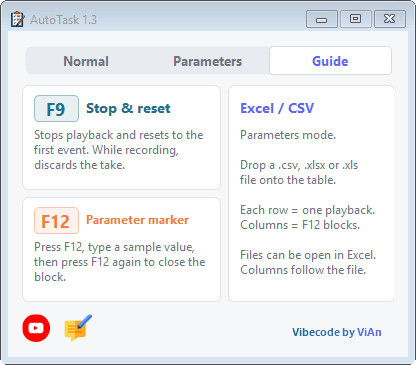
Four things AutoTask does well — and only those, to stay light.
Hit Record and run the workflow a single time. AutoTask captures the order of actions, the mouse coordinates and the typing rhythm — press Play and it all happens again, the same way.
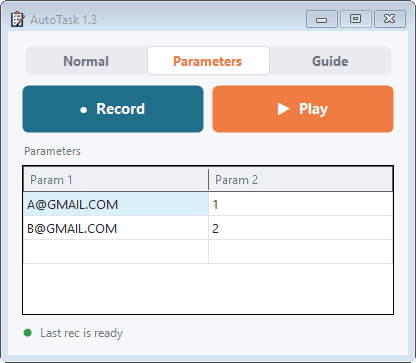
Parameter mode: drop a .csv / .xlsx / .xls file onto the grid. Each column is a block to fill, each row is one playback. Invoice numbers, SKUs, emails — no retyping.
A single .exe that runs as-is — no .NET, no service, no registry writes, no data sent anywhere. Your recordings stay on your own machine.
F9 stops playback and rewinds to the start. F12 marks a block whose value should change. No syntax to memorise, no config files to edit.
Fixed workflow? Use Normal. Batch runs with different data on every pass? Switch to Parameters.
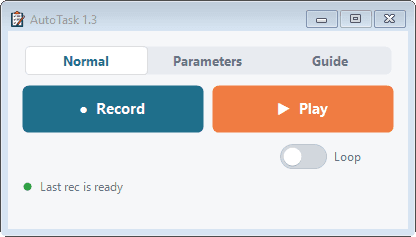
For fixed workflows: open the app, fill a few fields, print, close. Record the sequence once and replay it whenever you need — even after a reboot.
For batch work: press F12 where a value changes, then load your sheet. AutoTask substitutes each row's values into the marked blocks and plays the whole sheet back.
Press ● Record and do the workflow once. Wherever a value changes, press F12 to mark that block.
Drop an Excel/CSV file onto the Parameters grid. Each row is one run, each column is one F12 block.
AutoTask replays run after run at the pace you recorded. Press F9 whenever you need to stop.
Works on machines without internet. Everything stays local: recordings live in %LOCALAPPDATA%\AutoTask, with no uploads and no cloud sync.
One single file — unzip it and run. No .NET install, no admin rights needed.
Download AutoTask.exeWindows may warn you the first time you open it. The file isn't code-signed yet, so SmartScreen doesn't recognise it — click More info → Run anyway. If you downloaded it with a browser, right-click the file → Properties → tick Unblock.
Your feedback decides what gets built next — new data types, fixes for the rough edges, or dropping what's redundant. No account needed.
AutoTask was inspired by TinyTask 1.77 but keeps only two jobs: record and play. It adds parameter mode for batch runs driven by Excel data, a tidier English interface, and ships self-contained so no .NET install is needed.
The file isn't code-signed yet, so SmartScreen doesn't recognise it. On first launch click More info → Run anyway. If you downloaded it with a browser you may also need to unblock it: right-click the file → Properties → Unblock.
No. The app makes no network calls, writes no registry keys and runs no service. Recordings and parameter sheets live in %LOCALAPPDATA%\AutoTask on the machine you're using.
Yes. A .rec file is about 20 bytes per event, so you can copy it to another PC and use it there — as long as the target window sits in the same position, because AutoTask replays by absolute coordinates.